
TECH
Lenovo ThinkPad Not Powering Up? Here’s What to Do


Lenovo ThinkPad not powering up, you’re not alone. This issue is surprisingly common among laptop users, and the causes can vary from something as simple as a faulty charger to more complex problems involving your BIOS settings or internal hardware. While it may seem like your device has given up completely, there are several tried-and-tested methods to identify the root cause and potentially bring your ThinkPad back to life—no technical degree required.
Initial Signs and What They Mean
Before diving into troubleshooting, observe what’s happening when you press the power button. Is there any sound—like a fan spinning or hard drive whirring? Does the screen remain entirely black, or does it flicker briefly? Are there any lights blinking near the keyboard or power port?
These subtle indicators can help determine whether the issue is with your Lenovo laptop’s internal power circuit, a dead battery, or possibly a damaged motherboard. If absolutely nothing happens when you attempt to power on the laptop, your attention should first go to the charger and power source.

Start With the Basics: Power Source and Charger
Make sure the power outlet is functional by testing it with another device. Then, inspect your ThinkPad’s AC adapter and charging cable. Sometimes, a frayed wire or a defective charging brick might prevent electricity from reaching your laptop.
To be certain, try using a different compatible charger. Lenovo ThinkPads often come with their proprietary charging connectors, so make sure you’re using an original or Lenovo-certified adapter. If your charger isn’t delivering enough voltage, the battery may have drained to the point of being unresponsive, giving the illusion of a dead device.
Power Drain Method: A Simple but Effective Fix
One of the most overlooked yet highly effective fixes is the power drain or static discharge method. Here’s how to do it:
- Disconnect the charger and remove the battery (if it’s removable).
- Press and hold the power button for around 30-60 seconds.
- Reinsert the battery and plug the charger back in.
- Try powering up the device again.
This helps release any residual static electricity from the motherboard, which can occasionally prevent the device from booting. Many users have revived seemingly dead laptops using this technique alone.
Test the Battery Independently
If you suspect the battery might be at fault, try booting the laptop with the battery removed and the charger connected. If the ThinkPad powers on, it’s a strong indication that the battery is either dead or not properly seated.
For laptops with non-removable batteries, a reset pinhole is usually available on the bottom panel. Using a paperclip, press the emergency reset hole for 10–15 seconds, reconnect the charger, and attempt to start the laptop again.
Check for Signs of Life: LEDs, Beeps, and Fan Activity
Even if your screen remains black, other components may still respond. Look for power LED indicators, charging lights, or keyboard backlighting. In some cases, the screen may not display anything due to a faulty display cable or a malfunctioning graphics chipset, while the rest of the machine is functioning normally.
Listen for POST beeps (Power-On Self Test), which are system beeps that indicate specific errors. For example, a series of beeps may suggest a RAM issue, prompting you to reseat or replace your memory modules.
Reseat RAM and Check Internal Hardware
Accessing the RAM module on most ThinkPads is relatively straightforward. Turn off the laptop completely, unplug all power sources, and open the back cover. Gently remove the RAM sticks, clean the contacts with a soft eraser or microfiber cloth, and reseat them firmly into their slots.
While you’re inside, also inspect the CMOS battery—a small coin-cell battery that keeps your BIOS settings intact. A dead CMOS battery can cause boot failures, especially on older machines. Replacing it with a fresh CR2032 battery might resolve power and POST-related problems.
BIOS and Firmware Issues
Sometimes, the laptop might be powering on but failing to boot into the operating system. If you notice a flickering Lenovo logo or a frozen screen during startup, you may be dealing with a BIOS-related error.
You can attempt to reset the BIOS by removing the CMOS battery for a few minutes and reinserting it. Alternatively, some ThinkPad models support BIOS recovery through USB. Refer to Lenovo’s official website to download the correct BIOS version for your model and follow the steps for recovery.
Using an External Display to Rule Out Screen Issues
A completely black screen doesn’t always mean your laptop is dead. Your internal display might have failed while the system itself is operational. Connect the ThinkPad to an external monitor via HDMI or DisplayPort and try powering it on. If the external monitor displays output, your laptop’s LCD panel or display ribbon cable might need servicing or replacement.
Lenovo Diagnostic Tools and Support
Lenovo offers diagnostic utilities such as Lenovo Vantage and Lenovo Diagnostics which can be run from a bootable USB drive if the device turns on partially. These tools help identify issues with hardware components like the motherboard, hard drive, RAM, and cooling system.
If all else fails, and your Lenovo ThinkPad still won’t boot, it may be time to contact Lenovo support or visit a certified service center. If the device is still under warranty, avoid attempting complex hardware repairs yourself to prevent voiding coverage.

Frequently Asked Questions (FAQs)
Q1: Why won’t my Lenovo ThinkPad turn on even when plugged in?
A defective charger, dead battery, or internal hardware fault can prevent the laptop from powering on. Try a known working charger and perform a power drain reset.
Q2: Can a bad CMOS battery cause my laptop to stay off?
Yes, a dead CMOS battery can cause BIOS corruption or prevent the system from booting correctly, especially if BIOS settings are lost or reset improperly.
Q3: Is there a reset button on Lenovo ThinkPad laptops?
Most ThinkPads have a small pinhole reset (emergency reset hole) typically located on the bottom panel. Press it using a paperclip to perform a hardware reset.
Q4: How do I know if my motherboard is dead?
If there’s no fan sound, no lights, and no charging indicator even after replacing the battery and charger, it could point to a dead motherboard.
Q5: Can I turn on my Lenovo ThinkPad without a battery?
Yes, if the laptop is connected to a functional charger, it should power on without the battery installed.
Q6: Why is my Lenovo laptop screen black, but the power light is on?
This often indicates a display failure or a graphics card issue. Try connecting to an external monitor to check if video output is functioning.
Conclusion
A Lenovo ThinkPad that won’t power up might seem like a catastrophic failure, but in many cases, the solution is simple. Whether it’s a power drain, faulty battery, RAM seating issue, or display malfunction, systematically narrowing down the possibilities can save you both time and money
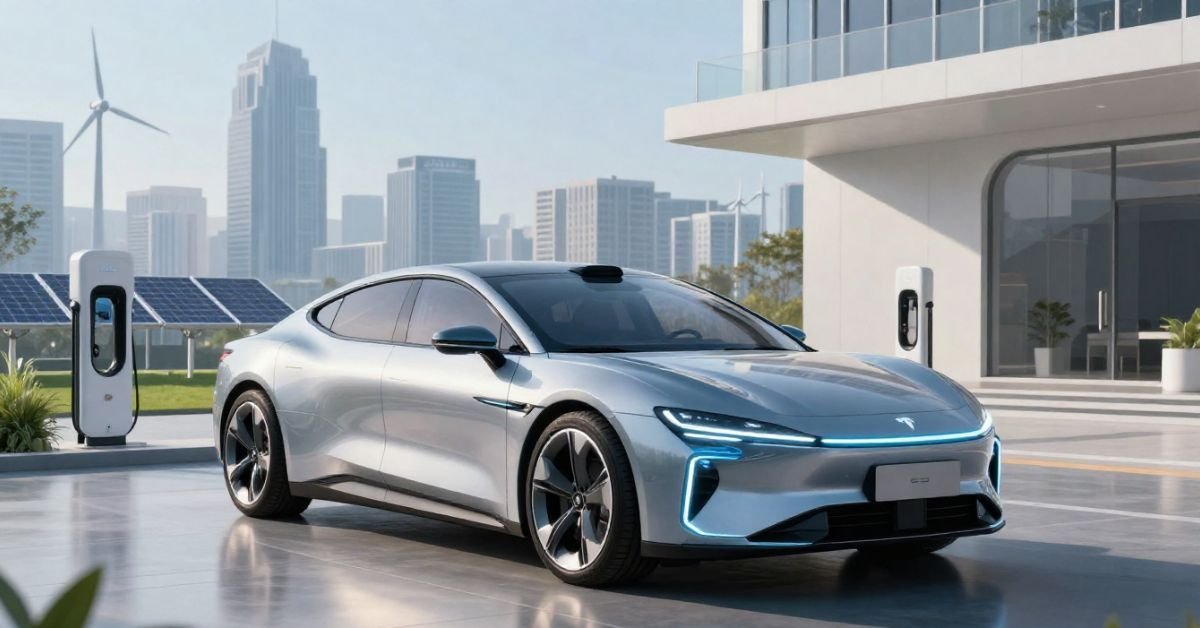
BYD short for “Build Your Dreams” has emerged as one of the world’s most influential electric vehicle manufacturers. Founded in 1995 as a battery company in Shenzhen, China, BYD has evolved into a fully integrated new energy powerhouse, producing everything from passenger EVs to electric buses, semiconductors, and rail transit systems. With a mission to “Cool the Earth by 1°C,” the brand has set itself apart not only through scale, but through relentless vertical integration and in-house innovation. This guide covers everything you need to know about BYD: its groundbreaking technology, full model lineup, ownership experience, and why millions of drivers globally are choosing BYD as their EV of choice.
BYD’s Revolutionary Technology: The Heart of the Brand
What truly sets BYD apart from most automakers is its deep investment in core technologies. Rather than sourcing key components from third parties, BYD designs, engineers, and manufactures its own batteries, electric motors, power electronics, and vehicle platforms. This vertical integration gives BYD an unparalleled ability to innovate rapidly and control quality across the entire vehicle.
The Blade Battery: Uncompromised Safety
The Blade Battery is one of BYD’s most significant technological breakthroughs. Using Lithium Iron Phosphate (LFP) chemistry, the cells are elongated into “blade”-shaped units and packed directly into a structural battery pack a design known as Cell-to-Body (CTB). This means the battery itself forms part of the vehicle’s structural floor, resulting in a stiffer, safer chassis without the traditional large battery module housing.
Key advantages of the Blade Battery include:
- Exceptional safety: Passes the industry’s most demanding nail penetration test without catching fire or exploding, outperforming rival ternary lithium batteries.
- Long lifespan: LFP chemistry is inherently more stable, offering over 1 million kilometres of battery life in certain configurations.
- Structural contribution: Integration into the floor pan improves torsional rigidity by up to 50% over conventional designs.
- No thermal runaway risk: The unique chemistry and cell geometry virtually eliminate the chain-reaction failure mode seen in some other EV batteries.
E-Platform 3.0 & 8-in-1 Powertrain: Efficiency Redefined
BYD’s e-Platform 3.0 is a purpose-built EV architecture that integrates eight powertrain components into a single, compact unit hence “8-in-1.” This highly integrated approach reduces weight, improves energy efficiency, and lowers the centre of gravity for a better driving experience. The platform supports 800V ultra-fast charging capable of adding 150 km of range in just five minutes (on compatible models), and enables a maximum DC-charging rate of 230 kW.
DiPilot & DiLink: Intelligent Driving & Smart Connectivity
BYD’s DiPilot suite delivers advanced driver-assistance systems (ADAS) across its lineup, encompassing adaptive cruise control, lane-keep assist, automatic emergency braking, and on higher-specification models semi-autonomous highway driving capabilities. Paired with the DiLink smart cockpit, drivers interact with the vehicle through a large rotating touchscreen (up to 15.6 inches on models like the ATTO 3), voice control, and over-the-air (OTA) software updates that continually improve the vehicle post-purchase.
The BYD Electric Vehicle Lineup
BYD produces a diverse range of passenger EVs across two primary design families: the sporty Ocean Series and the heritage-inspired Dynasty Series. Both ranges share the same core Blade Battery and e-Platform 3.0 technology, but are differentiated by styling, interior character, and target audience.
| Model | Type | Series | Ideal For |
| BYD Dolphin | Hatchback | Ocean | City commuters & first-time EV buyers |
| BYD Seal | Sports Sedan | Ocean | Performance-focused drivers |
| BYD Sealion 7 | SUV Coupe | Ocean | Active lifestyle & families |
| BYD ATTO 3 | Compact SUV | Dynasty | Families & everyday versatility |
| BYD Han | Executive Sedan | Dynasty | Premium, long-range travel |
| BYD Tang | 7-Seat SUV | Dynasty | Large families & long trips |
| BYD e6 | MPV | Specialized | Ride-sharing & large groups |
| BYD M6 | MPV | Specialized | Commercial transport & families |
The Ocean Series: Dynamic & Stylish
Inspired by the fluidity and power of the ocean, the Ocean Series targets younger, image-conscious buyers who want a modern, expressive EV. The BYD Dolphin offers an accessible entry point with a compact hatchback form, lively performance, and a youthful interior packed with tech. The BYD Seal elevates this with a sleek sports sedan profile, rear-wheel or all-wheel drive, and striking performance credentials often compared favourably to the Tesla Model 3. The BYD Sealion 7 rounds out the trio as a stylish SUV coupe, balancing practicality with a fastback silhouette.
The Dynasty Series: Modern Interpretation of Classics
The Dynasty Series takes design inspiration from Chinese cultural heritage. The signature “Dragon Face” front fascia gives each model a distinctive, premium appearance. The BYD ATTO 3 one of BYD’s most globally successful models is a compact crossover offering a spacious interior, excellent safety ratings, and proven reliability. The BYD Han is a premium executive sedan competing with the best of the segment, while the BYD Tang provides seven-seat versatility for larger families.
Why Choose BYD? Key Benefits Compared
Cost of Ownership: Efficiency & Warranty
Beyond the purchase price, BYD vehicles offer a compelling total cost of ownership. Electricity is significantly cheaper than petrol or diesel as a fuel source, and the LFP Blade Battery requires no active cooling maintenance. BYD’s standard warranty typically covers 8 years or up to 160,000 km on the battery, providing long-term peace of mind. With fewer moving parts than an internal combustion engine vehicle, servicing intervals are less frequent and less costly no oil changes, no exhaust repairs, and no clutch replacements.
Safety First: Global NCAP Ratings & Structural Integrity
BYD models have earned strong safety credentials from independent testing bodies globally. The BYD ATTO 3 achieved a 5-star Euro NCAP rating, as did the BYD Dolphin and BYD Seal, demonstrating consistent occupant protection across the range. The Cell-to-Body Blade Battery further enhances structural rigidity, reducing cabin deformation in crash scenarios. For families and safety-conscious buyers, BYD’s crash test performance makes it a reassuring choice.
V2L (Vehicle-to-Load) Functionality: Power Anywhere
Select BYD models support Vehicle-to-Load (V2L) technology, which allows the car’s large battery to power external devices, appliances, or even charge another electric vehicle. This capability makes BYD EVs incredibly versatile for camping trips, outdoor events, worksites, or as emergency home power backup. A typical BYD equipped with V2L can output up to 3.3 kW of power enough to run a refrigerator, laptop, power tools, or a portable projector simultaneously.
The BYD Ownership Experience
Seamless Purchase & Support
BYD has rapidly expanded its global dealer network, making it easier than ever to find a showroom, book a test drive, or configure your ideal specification online. After-sales support includes authorised service centres trained in BYD-specific systems, genuine parts availability, and dedicated collision repair programmes. The buying experience has been designed to feel transparent and pressure-free, with clear configurator tools available on the official BYD website.
The Growing BYD Community & App
The BYD owner community is thriving globally, with dedicated forums, social media groups, and an official mobile app that extends the ownership experience. The app enables remote climate pre-conditioning, real-time battery monitoring, charging scheduling, and the BYD Digital Key allowing owners to lock, unlock, and even start their vehicle directly from their smartphone. OTA software updates ensure that your vehicle’s features and performance improve over time without needing a workshop visit.
BYD Beyond Cars: Buses, Trucks & Rail
BYD’s expertise extends far beyond passenger cars. The company is the world’s leading manufacturer of electric buses and has deployed fleets in cities across Europe, North America, and Asia. BYD electric trucks and logistics vehicles are transforming last-mile delivery, while BYD SkyRail an elevated monorail system is being deployed as a sustainable urban transit solution in multiple countries. BYD also produces its own semiconductor chips and solar photovoltaic panels, cementing its position as one of the most comprehensively integrated clean energy companies on the planet.
Frequently Asked Questions About BYD
What does BYD stand for?
BYD stands for “Build Your Dreams.” The company was founded in Shenzhen, China, in 1995 by Wang Chuanfu, originally as a rechargeable battery manufacturer before expanding into electric vehicles and clean energy.
Is BYD a Chinese company?
Yes. BYD is headquartered in Shenzhen, China. However, it is a truly global brand, selling vehicles in over 70 countries and operating manufacturing plants and R&D centres on multiple continents.
Are BYD cars safe?
BYD cars have consistently achieved 5-star ratings from Euro NCAP, one of the world’s most rigorous crash safety programmes. The Blade Battery’s unique structure also contributes significantly to overall vehicle rigidity and occupant protection.
What is the BYD Blade Battery?
The Blade Battery is BYD’s proprietary Lithium Iron Phosphate (LFP) battery technology. Its blade-shaped cells are integrated directly into the vehicle’s structural floor (Cell-to-Body design), dramatically improving safety, longevity, and energy density compared to conventional battery pack designs.
How much does a BYD electric car cost?
Pricing varies significantly by market and model. Entry-level models such as the BYD Dolphin typically start from around £22,000–£27,000 in the UK and equivalent pricing in other markets. Premium models like the BYD Han command higher prices. Always check with your local BYD dealer for current pricing and incentives.
Conclusion
BYD’s rise from a battery start-up to the world’s top-selling EV brand is one of the most remarkable stories in automotive history. Its commitment to vertical integration, from Blade Battery technology to in-house semiconductors and electric drivetrains, enables it to deliver safe, efficient, and feature-rich vehicles at competitive prices. With a comprehensive model lineup that spans city cars to executive sedans, SUVs, and MPVs, BYD has something for virtually every driver. Whether you are making your first move into electric mobility or looking to upgrade from another EV brand, BYD deserves serious consideration. Explore the range, book a test drive at your nearest dealer, and discover why millions of drivers globally have already chosen to Build Their Dreams with BYD.
Awius is not in the dictionary. It was not handed down from Latin roots or borrowed from another language. It is a modern, digital-born creation a coined term designed to exist in the internet age, free from the baggage of existing meanings, cultural connotations, or trademark conflicts.
This puts it in company with some of the most powerful brand names in history. Google was a play on a mathematical concept. Spotify combined Spanish and English freely. Awius follows the same tradition: a short, distinctive, globally pronounceable word that belongs entirely to whoever chooses to define it.
| Key Facts About Awius at a Glance5 letters short, memorable, globally pronounceableNo fixed dictionary meaning definition is use-drivenNo cultural baggage works across all languages and marketsAvailable across major domain extensions: .ai, .tech, .app, .ioFull SERP control no competing search results to fight |
The Blank Canvas Philosophy: Why Meaning Is Use-Defined
The single most powerful thing about Awius is this: it means exactly what you need it to mean. This is not a weakness; it is its greatest strength.
Think of it as a digital container. A container does not dictate what goes inside. A glass can hold water, coffee, or juice the glass is not defined by any one of them. Similarly, Awius can contain a personal brand identity, a SaaS product, a community movement, or a cultural concept. Its value is determined by the quality and vision of whoever fills it.
This “blank canvas” philosophy is increasingly important in a world where niches shift, audiences evolve, and technology disrupts. A name with no fixed meaning never becomes obsolete.
Clearing Up Common Misconceptions About Awius
Because Awius is still an emerging concept, a few misconceptions have taken root. Here is a quick reference to set the record straight:
- It is NOT a specific company or registered software product.
- It is NOT tied to any single industry, vertical, or niche.
- It is NOT an acronym with a prescribed expansion.
- It IS a philosophical framework for flexible digital identity.
- It IS a powerful naming option for anyone building a modern digital presence.
Why Awius Matters: The Power of Adaptability in a Fragmented World
Solving the Digital Identity Crisis
The modern internet rewards clarity. Audiences are fragmented across TikTok, LinkedIn, Discord, and dozens of niche platforms. Legacy brand names specific, category-bound, or culturally dated struggle to travel across these contexts. A bakery named “DailyLoaf” cannot pivot to digital products. A freelance designer named “PixelPro2010” sounds dated in 2025.
Awius solves this problem at the root. Because it carries no built-in meaning, it can follow you wherever you go. It scales from a one-person blog to a multinational platform without ever needing a rebrand. In a world where pivoting is survival, Awius is the identity that adapts with you.
Aligning With the Pillars of Future Technology
Awius sounds futuristic because it was conceived for the future. The characteristics that define it adaptability, integration, user-centricity, intelligence are the exact characteristics driving the technology landscape forward. Consider how naturally it aligns with:
- Artificial Intelligence: AI tools, language models, and automation platforms all require names that convey intelligence without limiting their scope. Awius fits naturally.
- Cloud & API Ecosystems: Modular, interoperable systems need a modular, interoperable identity. Awius is architecturally consistent with how modern software is built.
- Low-Code / No-Code Platforms: Products built for accessibility need names that feel open and inviting. Awius communicates simplicity without sacrificing sophistication.
- Data-Driven Personalization: In an era of custom experiences, Awius signals a brand philosophy that puts the user at the center not the product.
The Branding Advantage: Why 5 Letters Are All You Need
From a pure branding and SEO perspective, Awius is an exceptional choice. The analysis below explains why short coined terms consistently outperform descriptive names in the digital age:
- SERP Dominance: A unique spelling means near-zero competition in search results. Type “Awius” and the results belong to whoever builds the strongest content around it.
- Memorable at First Encounter: Five letters, a distinctive vowel pattern, and an easy-to-pronounce structure make it stick in memory after a single exposure.
- Domain Availability: Unlike common words or phrases, coined terms often have open availability across premium extensions like .ai, .tech, and .app the domains of the future.
- Global Appeal: No cultural baggage means it works just as well in São Paulo as it does in Seoul or Stockholm.
Awius in Action: Real-World Applications and Use Cases
Understanding the concept is one thing. Seeing it applied across different contexts is another. The table below summarises the three primary use-case categories, followed by a deeper look at each.
| Category | Individuals | Businesses | Communities |
| Purpose | Personal identity & brand | Startup / SaaS name | Culture tag / hashtag |
| Key Benefit | Stand out online | Investor-ready, scalable | Signal forward-thinking |
| Examples | YouTube, podcast, portfolio | AI tool, CRM, app platform | #AwiusMindset, forums |
| Domain Fit | .me / .io / .art | .ai / .tech / .app | .community / .co |
| SEO Advantage | Unique SERP identity | Zero brand competition | Hashtag ownership |
Individuals: Building a Future-Proof Personal Brand
For creators, freelancers, artists, and thought leaders, personal brand is everything. The name you choose becomes your digital address the thing people search for, follow, and recommend. Awius gives individuals a rare advantage: a name that is already unique, already modern, and already optimized for discoverability.
Practical applications for individuals include:
- A YouTube channel covering technology, design, or entrepreneurship.
- A podcast exploring emerging ideas, culture, or creative work.
- A personal portfolio or developer profile at awius.me or awius.io.
- A social media handle that is consistent and available across every major platform.
- A blog or newsletter brand positioned at the intersection of innovation and ideas.
The unifying advantage: no one else has this identity. You own the narrative from day one.
Startups and SaaS: A Name That Scales With Your Vision
For entrepreneurs and product builders, the naming decision is one of the highest-stakes choices in the early stages of a company. Pick too narrow a name and you paint yourself into a corner. Pick too generic a name and you fight for visibility against thousands of competitors.
Awius solves both problems simultaneously. It is specific enough to be memorable, yet broad enough to encompass a pivot from B2C to B2B, from a single product to a full platform, or from a regional service to a global ecosystem. Consider the startup applications:
- An AI productivity tool that automates workflows across enterprise teams.
- A SaaS CRM platform for remote-first and distributed businesses.
- A blockchain-based digital identity verification system.
- A low-code application builder targeting non-technical founders.
- A project management platform designed for creative agencies.
Investor confidence is another dimension. A coined, clean, domain-secure name signals professionalism. It says the founders thought carefully about longevity, not just launch day.
Communities and Culture: A Signal for the Forward-Thinking
Not every application of Awius is commercial. There is growing evidence that the term is developing its own cultural gravity used as a hashtag, a community signal, and a shorthand for a certain type of mindset.
The #AwiusMindset tag has emerged as shorthand for: embrace ambiguity, build with flexibility, think in systems, and reject the limits of conventional categories. For community builders, Discord server owners, or thought-leaders building audiences across platforms, Awius offers a rallying concept that is open enough for everyone but specific enough to mean something.

How to Adopt the Awius Mindset: A Practical Framework
The Awius mindset is not passive. It is a deliberate approach to building, branding, and thinking. Here is a three-step framework for putting it into practice:
Define Your Core Value
Before you apply the name, clarify the idea behind it. What does your Awius stand for? What problem does it solve? What feeling should it evoke? A name without a philosophy behind it is just letters. Write a one-sentence definition: “Awius is [your project] the [adjective] [category] for [audience] who want [benefit].” This single sentence becomes your north star.
- Write your one-sentence brand definition.
- Identify the three words you want your audience to feel when they encounter your brand.
- Confirm that the Awius identity is broad enough to contain your five-year vision, not just your current product.
Map the User Experience
Awius is inherently user-centric. Every touchpoint from your website to your onboarding flow to your customer support voice should reflect the principles of clarity, adaptability, and intelligence. This means:
- Designing interfaces that are intuitive, not merely functional.
- Writing copy that adapts to the reader’s context rather than broadcasting a fixed message.
- Building systems that respond to user behavior in real time.
Build a Visual Identity Around the Concept
Awius aesthetics tend toward the clean, minimal, and modern. If you are designing a visual identity, consider these principles:
- Color: Cool blues, clean whites, and deep neutrals signal technological sophistication and openness.
- Typography: Geometric sans-serif fonts (Inter, Neue Haas, DM Sans) communicate clarity and modernity.
- Logo: A wordmark clean, lowercase or mixed case often works best. Avoid overly complex marks that limit scalability.
- Brand Voice: Adaptable, intelligent, direct. Avoid jargon. Speak to the user’s intelligence, not at it.
Frequently Asked Questions About Awius
| Question | Answer |
| What is Awius in simple terms? | Awius is a modern, coined digital term with no fixed meaning it functions as a flexible identity or brand name that adapts to any context, platform, or purpose. |
| Is Awius a real word or a company? | Neither, specifically. It is a coined term intentionally created without prior meaning. It is not a registered company name or a standard dictionary word. |
| How can I use Awius for my personal brand? | Use it as your consistent handle across social platforms, as a website/portfolio address, or as the name of your channel, podcast, or newsletter. Its uniqueness guarantees discoverability. |
| Can I use Awius as a name for my startup? | Yes its brevity, modern sound, domain availability, and zero brand conflict make it an excellent startup or SaaS name. Check domain and trademark availability before launching. |
| Why is Awius becoming popular recently? | Its rise tracks with broader trends: the demand for flexible, future-proof identities in an AI-driven, platform-fragmented digital world. Short coined terms simply perform better in this environment. |
| What is the Awius mindset? | A philosophy of adaptive thinking: embrace ambiguity, build for flexibility, design user-first systems, and refuse to be confined by categories that will not exist in five years. |
| Is Awius related to AI or blockchain? | Not inherently but its characteristics (modularity, interoperability, intelligence-signaling) make it a natural fit for projects in both spaces. It is not owned by either. |
| Where did the name Awius come from? | There is no single documented origin. The prevailing theory is that it emerged organically from the creator-tech community as a response to a growing need for identity names that were clean, unique, and unrestricted. |
Conclusion
Awius is not a product you can buy. It is not a framework you can license. It is a concept a way of thinking about identity in a world that rewards adaptability and punishes rigidity.
Its power lies precisely in its openness. It is the rare identity that does not compete with your vision; it amplifies it. Whether you are a freelance designer looking for a name that will still feel right in ten years, a startup founder building a platform that will pivot three times before it finds product-market fit, or a community builder creating space for people who think in systems and operate at the edges of categories Awius is ready to hold whatever you build.
The digital future belongs to those who refuse to be defined by the present. In that future, Awius is not just a name. It is a stance.
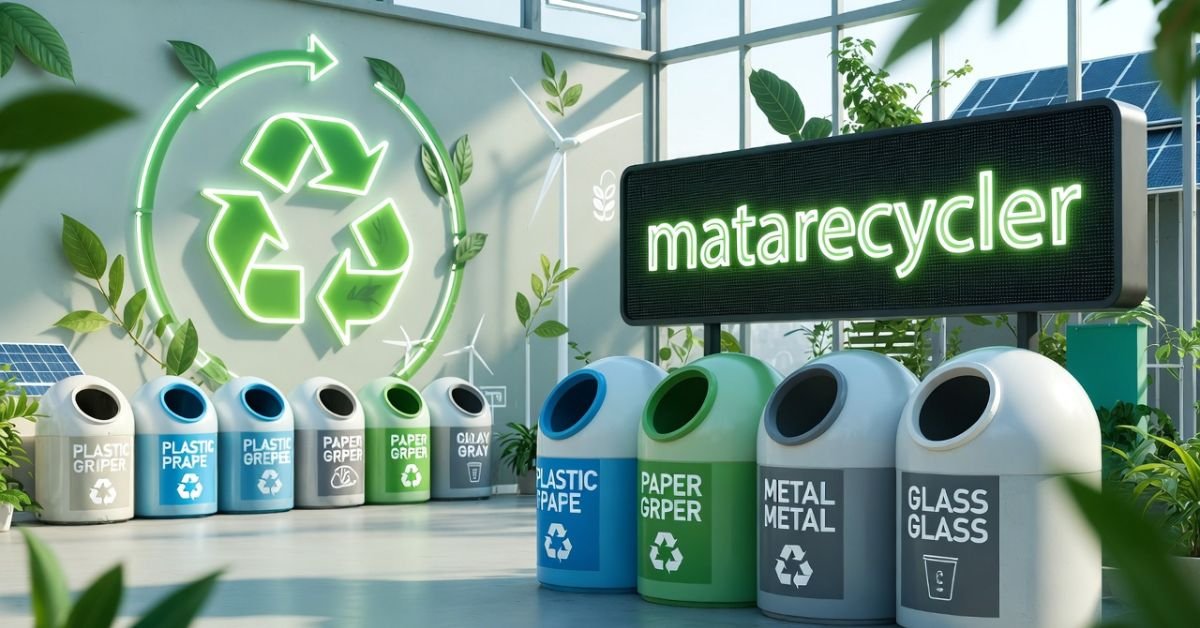
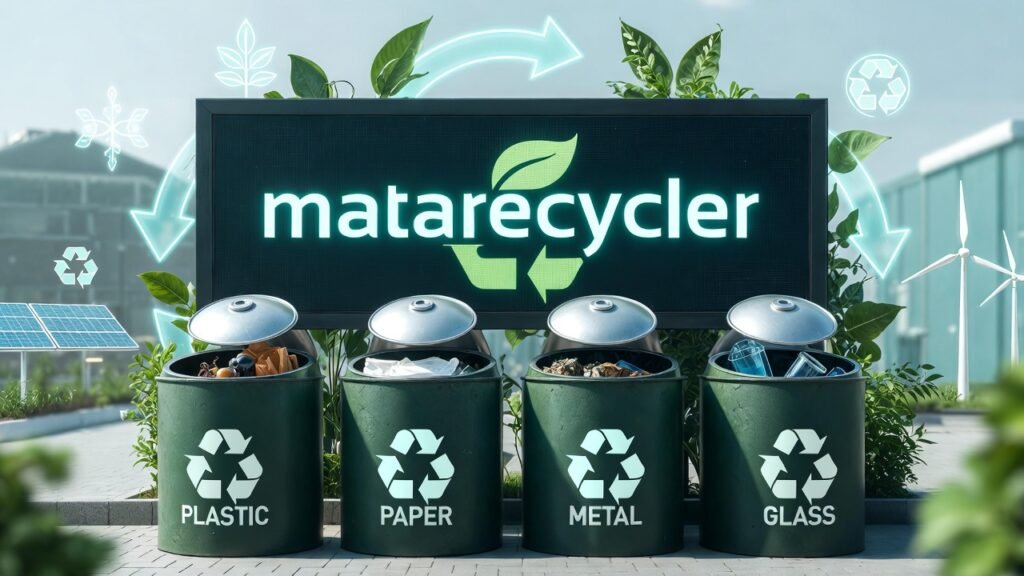
Matarecycler is an end-to-end smart recycling platform that integrates hardware, software, and community engagement into a single, cohesive solution. Unlike isolated apps or basic smart bins, Matarecycler is a full circular economy ecosystem connecting individual users, households, businesses, and municipalities through a unified network of AI-powered bins, real-time analytics, and a gamified mobile application.
Matarecycler addresses the three biggest failures of traditional recycling: contamination caused by incorrect sorting, inefficient collection that wastes fuel and resources, and low participation driven by a lack of incentives. By solving all three simultaneously, Matarecycler delivers measurable environmental, economic, and social outcomes at scale.
Core Features of the Matarecycler System
- AI-Powered Material Sorting & Recognition
- IoT-Enabled Smart Bins with Fill-Level Sensors
- Real-Time Data Analytics & Municipal Dashboards
- Gamified Mobile App with Rewards & Incentive Points
- Optimized Waste Collection Route Planning
- Blockchain-Based Material Traceability & Transparency
- User-Facing Item Scanning Tool
- Educational Content & Behavioral Change Nudges
- Automated Maintenance Alerts & Performance Tracking
Matarecycler vs Traditional Recycling: A Side-by-Side Comparison
The contrast between Matarecycler and conventional waste management is stark. Here is how the two approaches stack up across the metrics that matter most:
| Feature | Traditional Recycling | Matarecycler |
| Sorting Accuracy | Manual error-prone | AI-powered up to 95% accurate |
| Contamination Rate | High (up to 25%) | Reduced significantly |
| Collection Efficiency | Fixed schedules | IoT route-optimized |
| User Engagement | Passive participation | Gamified rewards & app |
| Data & Reporting | Minimal or none | Real-time dashboards & analytics |
| Cost for Municipalities | High operational cost | Up to 25% cost reduction |
| Transparency | Opaque supply chain | Blockchain-tracked materials |
How Matarecycler Works: From Bin to Blockchain
Understanding Matarecycler means following the journey of a recyclable item from the moment it enters the bin to its final processing and tracing on the blockchain. The platform operates across four interconnected stages, each designed to maximize efficiency, accuracy, and engagement.
Smart Sorting & AI Material Recognition
When a user deposits an item into a Matarecycler smart bin or scans it using the mobile app before disposal the system’s AI algorithms immediately analyse the material type. Using computer vision and sensor fusion, the platform can identify plastics (PET, HDPE, PVC), metals (aluminium, steel), glass, paper, cardboard, and even e-waste with up to 95% accuracy.
This dramatically reduces contamination, which is one of the leading causes of recyclable materials being rejected at sorting facilities. Users also receive real-time feedback through the app, reinforcing correct recycling behavior over time and building lasting habits.
IoT-Powered Smart Bins & Optimized Collection
Each Matarecycler smart bin is equipped with ultrasonic fill-level sensors that continuously report data to the central management platform. When a bin reaches a defined threshold, an automated alert is sent to the nearest collection vehicle, triggering a dynamic route update.
This eliminates the inefficiency of fixed collection schedules trucks no longer travel to empty bins or miss overflowing ones. Cities using Matarecycler’s IoT-enabled fleet management have reported up to a 20% reduction in fuel costs and a significant decrease in carbon emissions from waste collection operations. Every optimised route is a step toward a greener urban infrastructure.
Data Analytics & Transparent Reporting
Behind every smart bin is a powerful analytics engine. Municipal administrators and business operators access live dashboards that display recycling rates by area, contamination levels, bin usage patterns, and collection performance. These data-driven insights allow city planners to make evidence-based policy decisions, allocate resources more effectively, and set measurable sustainability targets.
For maximum accountability, Matarecycler integrates blockchain technology to create an immutable record of each recyclable’s journey from deposit to final material recovery. This level of traceability builds public trust and supports ESG (Environmental, Social and Governance) reporting for corporate clients.
Mobile App Engagement & Rewards
Community engagement is where many recycling programs fail. Matarecycler’s mobile application solves this through a gamification engine that makes recycling genuinely rewarding. Users earn points for every correct deposit, bonus rewards for hitting personal milestones, and badges for community challenges.
The app also features an item scanning tool users simply photograph an item to receive instant guidance on how and where to recycle it. Push notifications, educational content, and local leaderboards keep participation high long after the novelty of a new app wears off. The result is sustained behavioral change, not a one-week spike.
Who Benefits from Matarecycler?
Matarecycler is designed as a multi-stakeholder platform, meaning its value scales across individual users, community networks, and large organisational deployments. Here is how each group benefits.
For Individuals & Households
For everyday users, Matarecycler removes the confusion and frustration from recycling. The app provides clear, immediate guidance on what goes where, replacing the guesswork that leads to contamination. The rewards system transforms recycling from an obligation into a habit with tangible benefits redeemable points, discounts from local partners, and the satisfaction of tracking your personal environmental impact.
For Communities & Municipalities
Cities and local governments gain a powerful tool for meeting sustainability targets without proportionally increasing operational budgets. Smart bins reduce overflow incidents, optimised collection routes cut fuel costs, and real-time data replaces gut-feel decision making with hard evidence. Higher recycling rates mean more material recovery revenue and lower landfill fees, creating a positive economic feedback loop alongside the environmental gains. Matarecycler integrates seamlessly into existing smart city infrastructure, making it a natural fit for forward-thinking urban planners.
For Businesses & Industries
Businesses face growing pressure from investors, regulators, and customers to demonstrate genuine sustainability credentials. Matarecycler provides a verifiable, data-rich solution that directly supports Corporate Social Responsibility (CSR) initiatives and ESG reporting. From a restaurant managing food packaging waste to a corporate office reducing paper and plastic output, the platform can be configured for industry-specific waste streams. Revenue generated from recovered recyclable materials can also offset operational costs, making the ROI case straightforward.
Proven Results: Matarecycler Case Studies & Impact
Matarecycler’s value is not theoretical it has been demonstrated in real-world deployments across different environments and scales. The following case studies illustrate the platform’s measurable impact.
| Location | Deployment | Key Result | Highlight |
| Singapore | 500 Smart Bins | +30% recycling rate | Reduced overflow incidents by 40% |
| Berlin | IoT-enabled trucks | 20% fuel cost reduction | Emissions down significantly |
| Pilot City | Mobile App + Bins | 3x user participation | Gamification drove adoption |
Smart City Success: Singapore
In a pilot deployment of 500 Matarecycler smart bins across residential and commercial zones, Singapore recorded a 30% increase in recyclable material collection within the first six months. Automated alerts reduced bin overflow incidents by 40%, improving neighbourhood cleanliness and reducing public complaints to waste management authorities.
Operational Efficiency: Berlin
Berlin’s integration of IoT-enabled collection vehicles with the Matarecycler platform delivered a 20% reduction in fuel costs for the city’s waste management fleet. Dynamic route optimisation eliminated over 1,200 unnecessary vehicle trips per month, translating to a measurable drop in transport-related carbon emissions and significant annual cost savings.
Community Engagement: A Pilot Programme in a Mid-Sized City
A mid-sized city pilot combining smart bins with the Matarecycler mobile app saw community participation triple within three months of launch. Gamification features particularly neighbourhood leaderboards and milestone rewards proved especially effective at engaging younger residents. The city subsequently reported a 22% increase in correctly sorted recyclables compared to the pre-deployment baseline.
Getting Started with Matarecycler: Plans, Pricing & Installation
One of the most common questions about smart recycling platforms is straightforward: what does it cost, and how do you get started? Matarecycler offers flexible deployment models to suit individual households, growing businesses, and large municipal contracts.
Matarecycler for Homes & Individuals
Residential users access Matarecycler primarily through the free mobile app, available on iOS and Android. The app’s core item scanning, rewards, and tracking features are available at no cost. Premium subscription tiers unlock advanced analytics, family tracking dashboards, and enhanced reward multipliers. For households wishing to add a smart bin, hardware packages are available either for direct purchase or through a low monthly lease arrangement.
Matarecycler for Businesses & Municipalities: Custom Solutions
Enterprise and municipal deployments are scoped through a dedicated consultation process. Pricing is based on the number of smart bins required, geographic coverage, integration complexity with existing infrastructure, and the level of data analytics and reporting required. Multi-year municipal licensing agreements are available with dedicated account management and priority technical support. Businesses interested in deploying Matarecycler should contact the sales team for a customised ROI projection based on their specific waste volumes and operational context.
Technical Specifications of the Matarecycler Smart Bin
For technical procurement teams and city infrastructure planners, here are the key specifications for the standard Matarecycler smart bin unit:
| Specification | Detail |
| Capacity | 50–200 Litres (scalable models) |
| Power Source | Solar panel + rechargeable battery backup |
| Connectivity | 4G/LTE + Wi-Fi dual-mode |
| Sensors | Ultrasonic fill-level + weight sensors |
| Materials | Recycled steel + UV-resistant polymer shell |
| Operating Temp. | -20°C to +55°C |
| Maintenance Alert | Automated via IoT dashboard |
The Installation & Setup Process
Getting Matarecycler operational follows a structured four-step process designed to minimise disruption and maximise adoption speed:
- Consultation & Site Survey Matarecycler’s team assesses deployment locations, connectivity requirements, and integration points with existing systems.
- Hardware Delivery & Physical Installation Smart bins are delivered and installed by certified technicians, including sensor calibration and network connectivity setup.
- Platform Configuration & Integration The analytics dashboard, user accounts, and any API integrations with municipal systems are configured and tested.
- Launch, Training & Ongoing Support Staff training is provided, the community app is launched with an activation campaign, and ongoing technical support is provided via a dedicated helpdesk.
Challenges & Considerations for Smart Recycling
No transformative technology deploys without challenges, and Matarecycler is transparent about the real-world complexities organisations may encounter. Understanding these upfront helps ensure smoother implementation.
- Initial Setup Costs: Hardware investment can be significant for large-scale municipal deployments. Matarecycler addresses this through phased rollout plans and financing options that spread capital expenditure over time, with cost recovery modelled against operational savings.
- User Adoption: Technology is only as effective as the people using it. Matarecycler’s gamification and rewards engine is specifically designed to drive adoption, but local authority communication campaigns are critical partners in generating initial awareness.
- Data Privacy: Matarecycler handles user data in compliance with GDPR and equivalent data protection frameworks. Individual usage data is anonymised at the aggregate reporting level, and users retain full control over their personal account data.
- Infrastructure Integration: In cities with legacy waste management infrastructure, API integrations may require additional scoping. Matarecycler’s open architecture is designed to minimise friction, and the technical team provides dedicated integration support.
- Regulatory Compliance: Waste management is a regulated sector. Matarecycler’s team maintains current knowledge of regulatory requirements across its operational markets and supports clients through compliance documentation as part of the enterprise onboarding process.
The Future of Recycling: Matarecycler and the Path to a Circular Economy
The ambition behind Matarecycler extends far beyond smarter bins and better collection schedules. The platform is built on the conviction that waste, properly managed, is not a problem it is a resource. Every kilogram of material accurately sorted, efficiently collected, and transparently tracked through the supply chain is a kilogram of raw material that does not need to be extracted from the earth.
As AI capabilities advance, Matarecycler’s material recognition will extend to increasingly complex and mixed waste streams, including composite materials and emerging packaging formats. Expansion of the blockchain traceability layer will create new commercial opportunities for verified recycled material markets, incentivising businesses across the supply chain to close loops they currently leave open.
Smart city integration will deepen as Matarecycler connects with broader urban data ecosystems traffic systems, energy grids, and air quality monitoring to create truly holistic environmental management platforms. The goal is not just a world with better recycling. The goal is a world where the concept of waste becomes obsolete.
Frequently Asked Questions About Matarecycler
What is Matarecycler and how does it work?
Matarecycler is an AI-powered smart recycling platform combining IoT-enabled bins, a mobile app, and data analytics to improve sorting accuracy, collection efficiency, and community engagement. Users interact via the app; municipalities manage operations through a real-time dashboard.
How much does Matarecycler cost?
Individual app use is free. Hardware and enterprise plans are priced on a scoped basis. Residential smart bin packages are available for purchase or monthly lease. Municipal and business clients receive customised quotes following a consultation.
Can I buy a Matarecycler smart bin for my home?
Yes. Residential smart bin units are available directly from Matarecycler. They are compatible with the free mobile app and begin earning rewards from the first deposit.
How does Matarecycler’s AI sorting technology work?
The AI uses computer vision and sensor data to identify materials such as plastic types, metals, glass, paper, and e-waste at the point of deposit. Users also receive guidance through the item scanning feature in the app before disposal.
What materials can Matarecycler recognise?
The platform currently recognises PET, HDPE, PVC, aluminium, steel, clear and coloured glass, cardboard, paper, and common e-waste categories. Recognition capability is continuously expanded through machine learning updates.
How do the rewards and points work in the Matarecycler app?
Users earn points for every correctly deposited item, with bonus points for streaks, milestone achievements, and community challenges. Points are redeemable through the app for partner discounts, vouchers, or charitable donations.
Join the Matarecycler movement and help build a circular economy one smart bin at a time.
-

 TECH9 months ago
Apple iPhone 17: Official 2025 Release Date Revealed
-

 BLOG9 months ago
Understanding the ∴ Symbol in Math
-

 ENTERTAINMENT7 months ago
What Is SUV? A Family-Friendly Vehicle Explained
-
 EDUCATION4 weeks ago
Horizontal Translation: How to Shift Graphs
-

 EDUCATION9 months ago
Using the Quadratic Formula
-

 ENTERTAINMENT9 months ago
Going Live: How to Stream on TikTok from Your PC
-

 EDUCATION9 months ago
The Meaning of an Open Circle in Math Explained
-

 TECH9 months ago
Prodigy: Early Internet Pioneer